
Social Media Image Sizes: A Practical Guide
Platforms change their exact sizes often, but the shapes stay fairly stable. Get the aspect ratio right and the rest is easy.
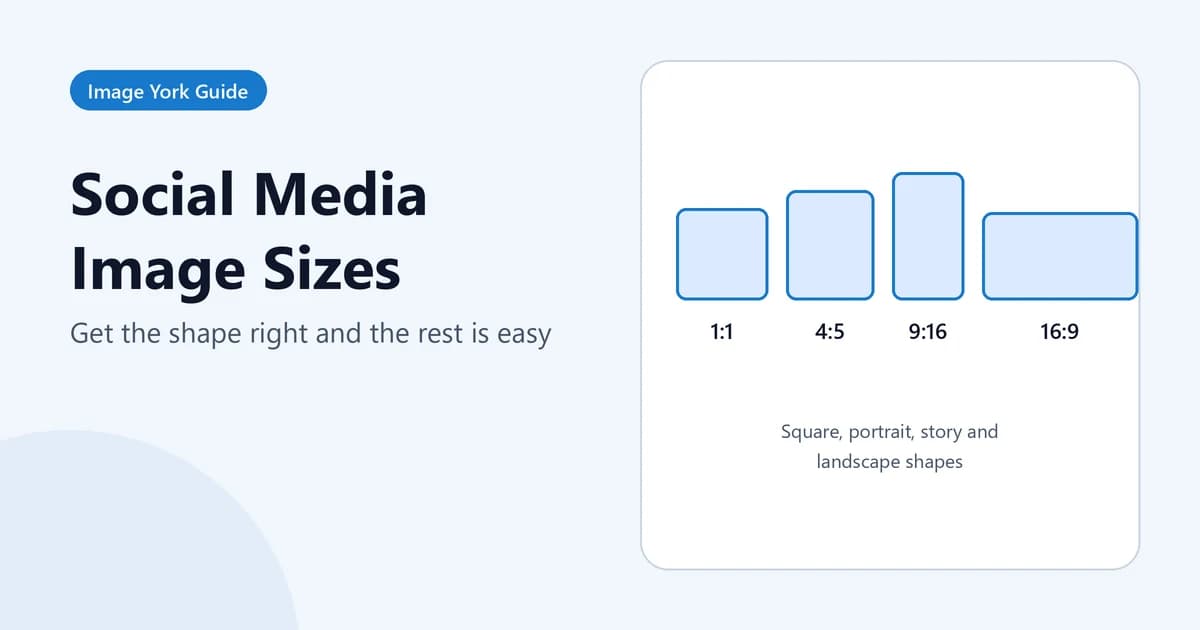
Every social platform has its own image sizes, and they change often enough that any list goes out of date. The good news is that the shapes, the aspect ratios, change much less than the exact pixel numbers. If you get the shape right and upload at a sensible resolution, the platform will scale the image for you without awkward cropping.
Think in aspect ratios
An aspect ratio is width compared with height. The common ones on social media are:
- 1:1 (square): profile pictures and square feed posts.
- 4:5 (portrait): taller feed posts that take up more of a phone screen.
- 9:16 (vertical full screen): stories, reels, shorts and TikTok.
- 16:9 (widescreen): YouTube thumbnails and many landscape posts.
- About 1.91:1: link preview images on several platforms.
- Very wide banners (around 3:1 or 4:1): profile headers on X and LinkedIn.
You can check any image's ratio with the Aspect Ratio Calculator.
The presets in Image York's resizers
Image York's social media resizers include presets such as 1080 x 1080, 1080 x 1350 and 1080 x 1920 for Instagram, 1280 x 720 for YouTube thumbnails, 1500 x 500 for X headers and 1584 x 396 for LinkedIn banners. Each page lists its presets. These are widely used sizes, but they are the tool's own values: platforms update their layouts, so check the platform's help center if something looks cropped after uploading.
Profile pictures are circles
Most platforms crop profile pictures to a circle, even though you upload a square. Keep faces and logos in the middle with space around them, so the corners can disappear without cutting anything important. The circle mode in the Crop tool shows you exactly what will remain.
Banners are cropped differently on each device
Wide headers and covers are shown differently on phones and desktops, and profile photos often overlap part of them. Put text and logos near the centre, leave the edges for background, and look at your profile on both a phone and a computer after uploading.
Fitting a photo that has the wrong shape
You have three choices when a photo does not match the shape you need:
- Crop: keep part of the photo and fill the frame. Best when there is a clear subject.
- Fit with margins: keep the whole photo and add space around it. Best for screenshots, charts and group photos.
- Stretch: never a good idea; faces and text look distorted.
The resizers on Image York, such as the Instagram Resizer, start with the whole photo fitted inside the frame and let you zoom and drag to crop instead.
Resolution and file size
Uploading at the preset size, or a little larger, gives the platform enough pixels without wasting data. Much larger uploads are simply scaled down by the platform, which then compresses them anyway. For a whole set of images in the same shape, the Bulk Image Resizer processes them together.
Article Written By
Radhika D
Reviewed for accuracy by the Image York team